

Chicken Road on Mobile: NZ iOS & Android Guide
How Kiwi players can access Chicken Road smoothly on phone and tablet, with practical fixes for lag, login friction, and unstable sessions.
How Chicken Road works on mobile
For most users, access is browser-first rather than a standalone game app. A good browser setup is usually enough for smooth play on modern phones.
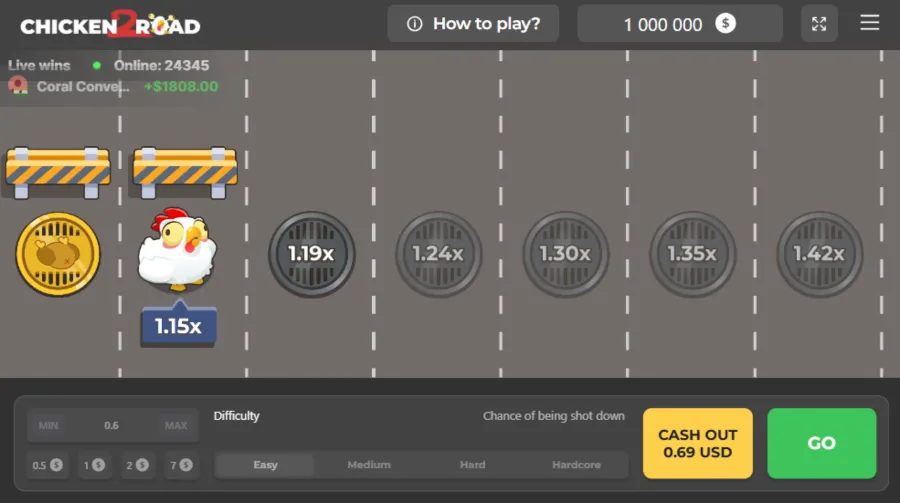
The key constraints are connection stability, battery state, and background app load.
Browser vs app: which is better?
| Area | Browser/PWA | Native app route |
|---|---|---|
| Setup speed | Faster | Install required |
| Storage use | Lower | Higher |
| Notifications | Limited | Stronger |
| Flexibility | Higher | Operator-specific |
For most NZ players, browser/PWA is the most practical default.





Best mobile pathways for Kiwi users
- iOS: Safari with home-screen shortcut (PWA style).
- Android: Chrome with installed web shortcut.
- Use one main device for cleaner session tracking and fewer auth issues.
Optimise iOS and Android performance
- Clear browser cache regularly.
- Close heavy background apps before play.
- Disable battery saver during active sessions.
- Prefer stable Wi-Fi or strong 4G/5G.
- Keep OS and browser updated.
Common mobile issues and quick fixes
| Issue | Likely cause | Fix |
|---|---|---|
| Lag spikes | Background load | Close apps + clear cache |
| Session drops | Unstable signal | Switch network before play |
| Login friction | Cookie/session resets | Use one browser + 2FA cleanly |
| Battery drain | Long high-brightness sessions | Short blocks + lower brightness |
Mobile play tips that actually help
Keep sessions short, define limits before opening the game, and avoid playing on weak signals. Technical stability directly affects decision quality.
PWA installation guide: Safari and Chrome step-by-step
A Progressive Web App (PWA) gives you app-like access to Chicken Road without downloading anything from the App Store or Google Play. It loads faster, runs fullscreen, and avoids the fake app risks described on our scam page. Here is the complete installation process for both platforms.
iPhone and iPad: Safari PWA setup
- Open Safari and navigate to your operator's Chicken Road page. Important: use Safari specifically — Chrome on iOS does not support PWA installation due to Apple's WebKit requirement.
- Wait for the page to fully load. Verify the game loads correctly by tapping a round or two in demo mode.
- Tap the Share button (the square icon with an upward arrow) at the bottom of the Safari screen.
- Scroll down in the share sheet and tap "Add to Home Screen".
- Edit the name if desired — "Chicken Road" or "CR Game" are practical short names.
- Tap "Add" in the top-right corner.
- The icon now appears on your home screen. Tap it to launch Chicken Road in a standalone browser window with no address bar, no tab clutter, and full-screen gameplay.
If the icon shows a blank webpage preview instead of the game's logo, the operator may not have configured a full PWA manifest. The shortcut still works — it just uses a generic icon. If this bothers you, you can customise the icon through the Shortcuts app on iOS.
Android: Chrome PWA setup
- Open Chrome and navigate to your operator's Chicken Road page.
- Wait for the page to fully load and verify game functionality.
- Tap the three-dot menu (⋮) in the top-right corner of Chrome.
- Look for "Install app" if the site supports full PWA — this creates a standalone app entry. If "Install app" is not shown, tap "Add to Home screen" instead.
- Confirm the name and tap "Add" or "Install".
- The shortcut appears on your home screen and, if installed as a full PWA, also appears in your app drawer alongside native apps.
On Samsung devices running One UI, the PWA icon integrates with the Samsung Internet browser if you install from there instead of Chrome. Both work — use whichever browser you prefer for the initial setup.
Updating and troubleshooting PWA installations
PWAs cache data locally for faster loading. If the game stops loading or shows a stale version, delete the home screen shortcut, clear your browser cache (Settings → Safari → Clear History and Website Data on iOS; Settings → Chrome → Clear Browsing Data on Android), and reinstall the PWA from scratch. This process takes under two minutes and resolves 90% of reported loading issues.
Browser comparison for NZ Chicken Road players
Not all browsers deliver the same Chicken Road experience. Performance differences affect load times, round-to-round responsiveness, and battery efficiency. Here is a practical comparison based on testing across common NZ player setups:
| Browser | Platform | Load time (WiFi) | Round responsiveness | PWA support | Battery efficiency | Verdict |
|---|---|---|---|---|---|---|
| Safari | iOS/iPadOS | 2.0–2.5s | Excellent | Full (home screen shortcut) | Best on iOS | Recommended for iPhone/iPad |
| Chrome | Android | 2.2–2.8s | Excellent | Full (install app) | Good | Recommended for Android |
| Chrome | iOS | 2.4–3.0s | Good | No install option | Slightly worse than Safari | Use Safari instead on iOS |
| Firefox | Android | 2.5–3.2s | Good | Add to Home only | Good | Acceptable alternative to Chrome |
| Samsung Internet | Samsung devices | 2.3–2.8s | Good | Add to Home | Good (with sleep optimization) | Fine for Samsung users |
| Brave | Android/iOS | 2.5–3.5s | Good | Varies | Good | Shield settings may block game scripts — disable shields for operator domain |
| Edge | Android/iOS | 2.8–3.5s | Acceptable | Add to Home | Average | Works but no advantage over Chrome/Safari |
Key takeaway: Safari on iOS and Chrome on Android are the optimal choices for Chicken Road performance. If you use a different browser, the game will still work — but load times may be 0.5–1 second slower, and PWA installation may be limited or unavailable.
One NZ-specific note: Brave browser's ad-blocking "Shield" feature can interfere with game loading scripts on some operators. If the game fails to load in Brave, tap the shield icon in the address bar and disable shields for the specific operator domain. This does not affect ad-blocking on other sites.
Performance optimisation tips for NZ mobile play
Technical performance directly affects your play quality. A lag spike during a manual cashout attempt can cost you the exit window. These optimisations reduce the chance of technical issues interfering with your sessions.
Connection optimisation
- Prefer WiFi over mobile data: WiFi provides lower and more consistent latency. The difference matters for manual cashout timing where 100–200ms can separate a successful exit from a missed one.
- Test your connection before live play: Open the demo and play five rounds. If any round shows visible lag or delayed cashout response, switch networks or troubleshoot before putting NZ$ at stake.
- Avoid peak hours on mobile data: In Auckland, Wellington, and Christchurch, 4G congestion peaks between 7–9 PM. If you play on mobile data during these hours, expect slightly higher latency. 5G performs better under congestion but coverage is still patchy in some NZ urban areas as of early 2026.
- Flight mode trick: Enable flight mode, then re-enable only WiFi (not mobile data). This forces your phone onto WiFi exclusively and prevents mid-session network switching that can cause brief connection drops.
Device optimisation
- Close background apps: Each open app consumes RAM. On devices with 4GB or less, closing unused apps frees 200–500MB of memory, which measurably improves browser performance for game rendering.
- Disable battery saver during play: Battery saver modes throttle CPU and GPU performance, which can increase round rendering time and input latency. If your battery is above 30%, disable battery saver for the duration of your session.
- Update your browser and OS: Browser updates include rendering engine improvements that directly affect game performance. iOS 17+ and Android 14+ provide the best WebGL and JavaScript performance for browser-based games.
- Screen brightness balance: Maximum brightness drains battery faster and can cause eye strain during 20–30 minute sessions. 50–60% brightness provides adequate visibility while extending session duration by 15–20% on most devices.
Session environment
- Do Not Disturb: Enable DND before every session. A banking notification covering the cashout button at the critical moment is an avoidable technical failure. On iPhone: Settings → Focus → Do Not Disturb. On Android: swipe down → DND toggle.
- Stable surface: If playing on your phone, rest it against something stable rather than holding it. Shaky grip leads to imprecise taps. If playing on a tablet, use a case with a stand.
- Screen lock duration: Extend your auto-lock timer to 5+ minutes for the session duration. Having the screen lock mid-round because you paused to think is a preventable disruption.
Mobile-specific strategy adjustments for NZ players
Playing Chicken Road on mobile is not identical to desktop play. The environment, input method, and session context differ in ways that warrant specific strategy adjustments.
Auto cashout becomes non-negotiable on mobile
On desktop, manual cashout is a reasonable option — you have a mouse, precise cursor control, and a large target area. On mobile, manual cashout involves a thumb tap on a smaller target with variable touch responsiveness. The risk of a missed or delayed tap is higher. For mobile play, auto cashout is not just recommended — it is the appropriate default. Manual exits should be reserved for desktop sessions where input precision is higher.
Shorter sessions, higher frequency
Mobile sessions happen in more varied environments: lunch breaks, commutes, quiet evenings. The convenience encourages longer total play time split across shorter individual sessions. This is actually healthier for decision quality — three 15-minute sessions with breaks produce better outcomes than one 45-minute marathon. Set your mobile session timer to 15–20 minutes (shorter than the 20–40 minute desktop recommendation) and plan for two or three sessions per sitting.
Stake sizing for mobile context
Mobile play often happens in casual contexts where distractions are higher. The casual environment can lead to less deliberate stake sizing. Counter this by setting your stake amount before opening the game — write it in your session note along with exit target and stop-loss. Do not adjust it once the session starts, even if the interface makes it easy to tap the increase button.
Connection-aware session planning
Before starting a mobile session away from WiFi, check your signal strength. A single bar of 4G is not sufficient for manual cashout play. If your signal is weak, either use auto cashout exclusively or postpone the session until you have stable connectivity. Losing real NZ$ because a cashout command failed to transmit is a preventable failure, not bad luck.
| Mobile vs Desktop parameter | Desktop recommendation | Mobile recommendation | Reason |
|---|---|---|---|
| Cashout method | Manual or Auto | Auto only | Touch latency risk on mobile |
| Session length | 20–40 minutes | 15–20 minutes | Higher distraction environment |
| Session frequency | 1–2 per sitting | 2–3 shorter sessions | Mobile suits burst play |
| Pre-session ritual | Close tabs, set timer | DND on, close apps, set timer | More preparation needed for mobile |
| Connection requirement | WiFi (standard) | WiFi preferred, strong 4G minimum | Connection reliability matters more |
Ethan from Lower Hutt switched from desktop to exclusively mobile play over a two-month period. His observations: "Auto cashout on mobile eliminated my biggest problem — hesitating on manual exits. My override count dropped to near zero because there was nothing to override. The trade-off was losing the excitement of watching the multiplier climb, but the consistency was worth it. My session logs show measurably tighter results on mobile with auto cashout than on desktop with manual exits."
FAQ - Chicken Road Mobile NZ
Quick answers for iOS and Android users.
Usually no. Browser/PWA access is typically sufficient.
Safari with home-screen shortcut and updated iOS works well.
Most often from weak signal, old cache, or too many background apps.
Gambling Helpline NZ: 0800 654 655 and gamblinghelpline.co.nz.
NZ player mobile experience reviews
Direct mobile feedback from Kiwi players using Chicken Road on phones and tablets.
"Running Chicken Road through Safari on my iPhone 14 has been seamless. I added it to my home screen as a PWA and it loads in about two seconds on WiFi. The controls are easy to hit even on a small screen. Battery drain is noticeable after 30 minutes though, so I keep sessions short which is probably a good thing anyway."
"Android on Chrome works well but I had lag issues on 4G during peak hours around 8 PM. Switching to my home WiFi fixed it completely. My advice: test your connection stability in demo before putting NZ$ on the line. One lag spike during a live round can cost you a cashout if your manual exit does not register in time."
"Tried it on both my Samsung tablet and my old Pixel phone. Tablet was better for visibility but the phone was more convenient for quick sessions on my lunch break. The main issue on both was notification interruptions mid-round — now I use Do Not Disturb every time and the experience is miles better."
Device compatibility reference for NZ players
Chicken Road runs through the browser on virtually any modern device, but performance varies. Here is a practical reference based on feedback from NZ players across common devices:
| Device category | Operating system | Browser | Performance | Notes |
|---|---|---|---|---|
| iPhone 12+ | iOS 16+ | Safari | Excellent | PWA home-screen shortcut recommended |
| iPhone SE/11 | iOS 15+ | Safari | Good | Slightly slower load, still fully playable |
| Samsung Galaxy S22+ | Android 13+ | Chrome | Excellent | Fast load, smooth animations |
| Samsung Galaxy A-series | Android 12+ | Chrome | Good | Close background apps for best results |
| Google Pixel 6+ | Android 13+ | Chrome | Excellent | Clean performance on stock Android |
| iPad (2020+) | iPadOS 16+ | Safari | Excellent | Larger screen improves multiplier visibility |
| Budget Android (2+ GB RAM) | Android 11+ | Chrome | Acceptable | May stutter under heavy load — close all other apps |
Regardless of device, two factors matter most: stable internet connection and minimal background load. WiFi consistently outperforms mobile data for round-to-round reliability, and closing unused apps frees memory for smoother gameplay.
Step-by-step PWA setup for iPhone and Android
A Progressive Web App (PWA) shortcut gives you app-like access to Chicken Road without downloading anything from an app store. It loads faster than navigating through the browser each time and provides a cleaner full-screen experience.
iPhone (Safari) setup
- Open the operator’s Chicken Road page in Safari (not Chrome — iOS Chrome does not support PWA install).
- Tap the Share button (square with upward arrow) at the bottom of the screen.
- Scroll down and tap "Add to Home Screen".
- Name it something clear like "Chicken Road" and tap Add.
- The icon appears on your home screen. Open it for a full-screen browser experience with no address bar clutter.
Android (Chrome) setup
- Open the operator’s Chicken Road page in Chrome.
- Tap the three-dot menu in the top-right corner.
- Select "Add to Home screen" (or "Install app" if the site supports full PWA).
- Confirm the name and tap Add.
- The shortcut appears on your home screen with app-like launch behaviour.
After installing, clear your browser cache separately — the PWA shortcut maintains its own storage. If the game ever loads slowly from the shortcut, delete it and re-add following the same steps. This process takes under a minute and resolves most stale-cache issues NZ players encounter.
One NZ-specific consideration: some mobile banking apps (ASB, ANZ, BNZ) display transaction notifications during play. These pop-ups can cover the cashout button at the worst possible moment. Before starting a session, either disable banking notifications temporarily or switch to Do Not Disturb mode. The risk of missing a manual cashout because a $4.50 coffee notification appeared mid-round is avoidable but catches players off guard more often than you would expect.
Data usage for Chicken Road is minimal — roughly 1–3 MB per session of 50 rounds. Even on a capped NZ mobile plan, gameplay will not consume meaningful data. However, connection stability matters more than speed. A consistent 4G signal outperforms a fast but intermittent 5G connection for round-to-round reliability. If your area has patchy coverage, prefer WiFi for live sessions and save mobile data for demo practice where a dropped connection has zero financial consequence.
Battery management matters for longer sessions. A typical 30-minute Chicken Road session at medium screen brightness consumes approximately 8–12% battery on a modern iPhone or Samsung. If your device is below 30% charge, either plug in or plan a shorter session. Low-power mode on most devices throttles background tasks but does not noticeably affect browser game performance, so enabling it is a reasonable precaution.
NZ mobile network reality for Chicken Road
New Zealand's mobile infrastructure in 2026 is generally strong in urban areas but patchy in regional zones. This matters for Chicken Road because a dropped connection mid-round means your manual cashout command cannot reach the server.
Coverage by provider
| Provider | 4G coverage (urban) | 4G coverage (regional) | 5G availability | Chicken Road suitability |
|---|---|---|---|---|
| Spark | Excellent | Good | Auckland, Wellington, Christchurch | Best overall for mobile play |
| Vodafone NZ | Excellent | Good | Major metros | Strong urban, acceptable regional |
| 2degrees | Good | Moderate | Limited | Fine for WiFi play, test 4G before relying on it |
If you live outside Auckland, Wellington, or Christchurch and plan to play on mobile data, test your connection with 5–10 demo rounds before committing live NZ$. An unstable connection during demo costs nothing. An unstable connection during a live round where you miss a manual cashout costs real money.
WiFi optimisation for home play
Most NZ homes use fibre, VDSL, or ADSL broadband through Spark, Vodafone, or 2degrees. For Chicken Road, the critical metric is latency (ping time), not download speed. A stable 20ms ping on fibre is better than a 200Mbps connection with 80ms spikes.
Practical WiFi tips: play within line-of-sight to your router, close competing downloads or streaming on other devices during sessions, and if your router offers 2.4GHz and 5GHz bands, use 5GHz for lower latency (though 2.4GHz has better range if you are far from the router). Ngaire from Whangarei reports that moving from her bedroom (through two walls from the router) to the living room (direct line of sight) reduced her game lag from noticeable to imperceptible.
Responsible mobile play for Kiwi players
Mobile access makes Chicken Road available anywhere, anytime — which is simultaneously the platform's greatest convenience and its greatest risk. The ease of pulling out your phone and playing three rounds while waiting for a coffee creates an accessibility that desktop play never had.
Three mobile-specific responsible play measures worth implementing:
- App-level screen time limits: On iPhone, use Screen Time to set a daily time limit for Safari or your PWA shortcut. On Android, use Digital Wellbeing to set an app timer. When the limit is reached, the app locks. This creates a hard boundary that operates independently of your in-session discipline.
- Separate browser profile: On Chrome (Android), create a dedicated browser profile for gambling that you only open during planned sessions. This prevents casual browsing from becoming impulse play and keeps your gambling activity visually separated from everyday browsing.
- Geographic boundaries: Some NZ players report that restricting Chicken Road to home WiFi only — never playing on mobile data — creates a natural environmental limit. You only play when deliberately at home, not impulsively during commutes, lunch breaks, or social events.
Mobile play is not inherently riskier than desktop play. But the convenience factor removes natural friction that desktop play provides (sitting down at a desk, opening a specific browser, navigating to the site). Recreating that friction through deliberate constraints keeps mobile sessions intentional rather than reactive.
If you find yourself opening Chicken Road on your phone without having consciously planned a session, that pattern is a warning sign worth addressing. Contact Gambling Helpline NZ on 0800 654 655 for confidential support and self-assessment tools.